Configuration
The configuration file
When git-com runs it will look for a .git-com.yaml or .git-com.yml file at the root of your repository. It’s a good idea to commit this file, especially if you work on a team that wants to use git-com so that they can always have consistently structured commit messages with all the important info.
Quick Start
The following YAML replicates the Conventional Commits 1.0.0 commit message standard. It’s a good starting point.
Notes:
feat,fix,feat!, andfix!are the only official options for “type”, however I’ve added the suggested “type” options in. Feel free to modify to suit your needs/preferences.- The list of choices for the optional
scopeelement “… must consist of a noun describing a section of the codebase”. I’ve added some starter elements that you might find in an desktop app, but you should modify this list depending on what kind of project you’re working on. Whatever you add, be sure to keep the words short. For example, I useddbinstead of database. - “Ticket” isn’t part of CC, but it is an example they provide of something you could include at the end of your commits. The configuration below makes it optional, but restricts it to integer input. If your ticketing system uses letters too, or you want to allow multiple ticket numbers per commit, you can just delete the
data-typeattribute.
Modify this YAML and store it in a file named .git-com.yml at the root of your repository. You can have a different file for every repository.
commit-type:
  type: select
  destination: title
  instructions: What type of work?
  options:
    - fix
    - feat
    - build
    - chore
    - ci
    - docs
    - style
    - refactor
    - perf
    - test
    - fix!   # indicates a breaking change
    - feat!  # indicates a breaking change
scope:
  type: select
  destination: title
  instructions: (optional) What section of codebase?
  allow-empty: true
  before-string: "(" # no leading space because the CC spec demands no space
  after-string: ")"
  # no trailing space in afte-string because it needs to be handled with
  # a leading space in 'subject' in case the user doesn't choose a 'scope'
  options:
    - menus
    - exts
    - decoders
    - errors
    - graphql
    - helpers
    - models
    - services
    - views
    - db
subject:
  type: text
  destination: title
  before-string: " " # empty space to separate it from either scope or title
  placeholder: "a short description…"
commit-description:
    allow-empty: true
    destination: body
    instructions: Please describe your changes.
    placeholder: "(optional details)"
    type: multiline-text
ticket-number:
    type: text
    destination: body
    data-type: integer
    allow-empty: true
    before-string: "\n\nTicket: "
    instructions: Associated Ticket Number (if any)
Meta Elements for Third-Party Tools
Third-party tools that build on git-com (such as changelog generators) can store their repository-specific configurations in the .git-com.y[a]ml file. To avoid conflicts with git-com’s element processing, these configurations must use top-level keys that begin with meta_element_.
The convention is meta_element_ followed by the tool name. For example:
meta_element_changelog_generator:
  output_format: markdown
  include_breaking_changes: true
  categories:
    - feat
    - fix
    - docs

meta_element_release_notes:
  template: "./templates/release.md"
git-com will:
- Ignore these elements during commit message generation
- Preserve them when saving changes to the config file (e.g., when adding new options via
modifiable: true)
This allows your repository’s .git-com.yaml to serve as a central configuration file for multiple tools in your commit/release workflow.
Overall structure
The configuration file is a YAML document where each top-level key defines an element. Elements are processed in the order they appear in the file, and each element prompts the user for input.
element-name:
  destination: title  # or body
  type: text          # element type
  # ... additional attributes
The key (element-name) is used internally to identify the element. It doesn’t appear in the commit message unless you want it to (via before-string or after-string).
Required Attributes (All Elements)
destination- Where the input goes:titleorbodytype- The element type (see below). Can be omitted ifdata-typeis specified, in which casetextis assumed.
Optional Attributes (All Elements)
| Attribute | Description | Default |
|---|---|---|
instructions |
Text displayed above the input prompt | none |
before-string |
Text prepended to the user’s input | none |
after-string |
Text appended to the user’s input | none |
format |
sprintf-style format string (e.g., %-12s) |
none |
allow-empty |
Whether empty input is accepted | false |
include-empty |
Apply decorators even when value is empty | false |
Note: Elements with destination: title cannot have newlines in before-string, after-string, or format.
The format attribute applies sprintf-style formatting to the final value (after before-string and after-string are applied). This is useful for padding output to align your git log. See the README for examples.
include-empty
The include-empty flag allows you to apply decorators (before-string, after-string, format) even when the user chooses no value. This attribute is only valid when allow-empty is also set to true.
By default, when a user skips an optional element (selects empty), nothing is added to the commit message from the element. With include-empty: true, the decorators are still applied even though the value itself is empty.
You will rarely need this.
-
Example Use Case
The conventional commits standard says to use a
!to indicate a breaking change. For example, a bug-fix that is a non-breaking change would be marked withfix, but one with a breaking change would be markedfix!We don’t want to add
!options to every change type in our list, because that doubles the length of our list and makes the user deal with unnecessary choices that are almost always irrelevant. Instead we can just have a secondselectelement withallow-emptyset totrueand a single option in the list!. For most commits the user can just whack the enter key a second time and blow past it.But, what if you wanted the change type and the optional
!to be enclosed in brackets? Ex.[fix]and[fix!]We can accomplish this by using
include-empty: truewhich will cause theafter-stringto always be used, even if the user doesn’t choose anything.change-type: type: select destination: title before-string: '[' instructions: What kind of change? options: - fix - add breaking-change: type: select destination: title after-string: ']' instructions: "Skip unless breaking change" allow-empty: true include-empty: true options: - "!"Let’s say the user chose “fix” when the
change-typeelement was presented.User Selection Without include-emptyWith include-empty: trueCombined with previous choice Empty (skip) nothing added ][fix]!!]!][fix!]Note: the
formattingattribute will still only apply to the element it is part of. So, addingformattingto thebreaking-changeelement in the example will not consider the string provided by thechange-typeelement in the prior selection.
Element Details
text
A single-line text input field.
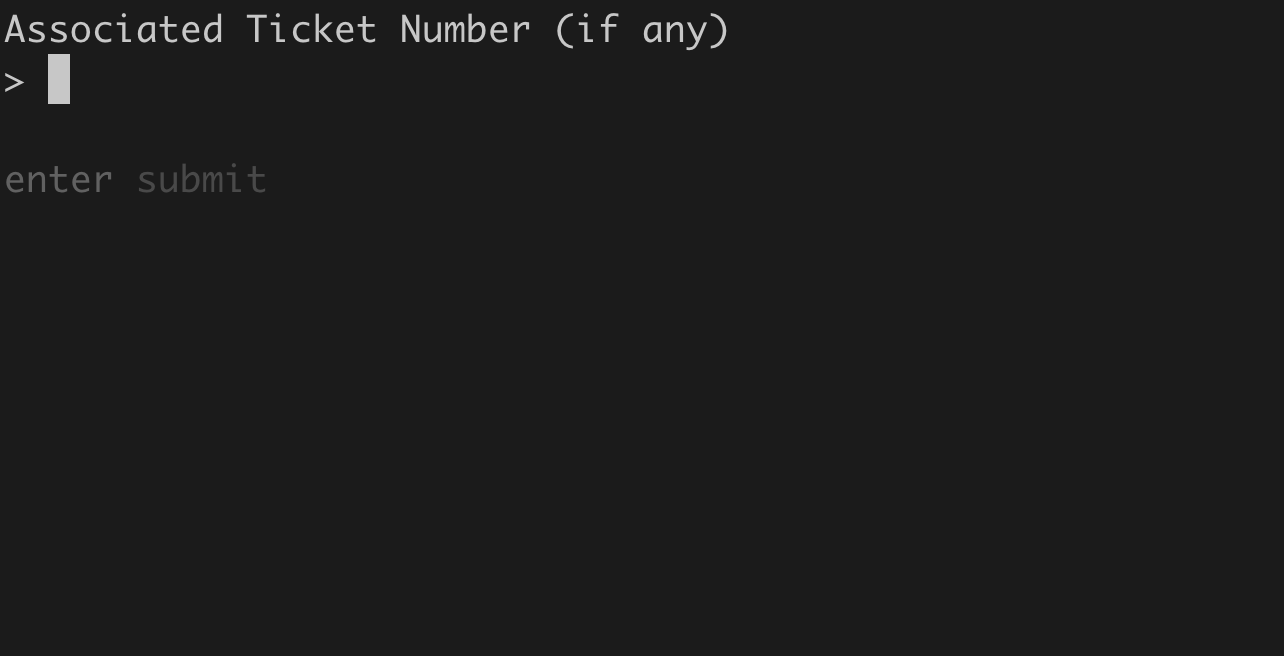
Text input with instructions
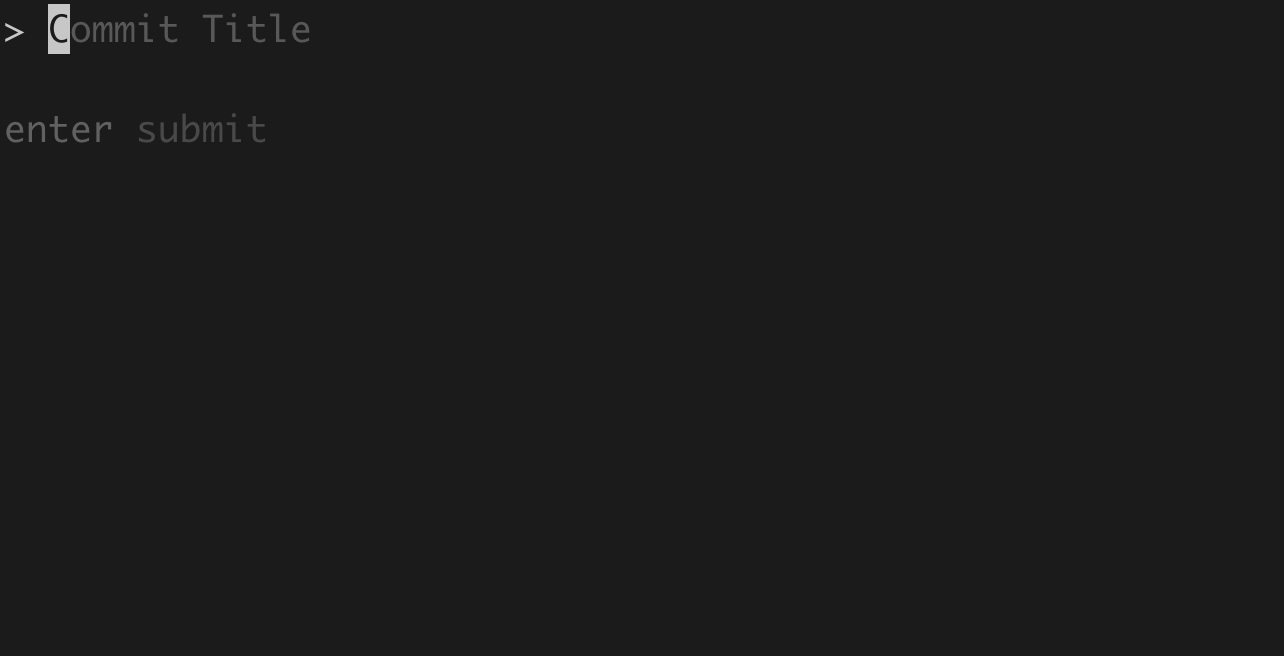
Text input with placeholder
-
Required Attributes
destinationtype: text(can be omitted ifdata-typeis specified)
-
Optional Attributes
Attribute Description Default placeholderGrayed-out hint text shown in empty input none data-typeValidation type: string,integer, orfloatstringNote: You generally don’t want to have instructions and a placeholder.
-
Example
commit-title:
  destination: title
  type: text
  instructions: "Enter a brief description of your changes"
  placeholder: "What did you change?"

ticket-number:
  destination: body
  data-type: integer
  before-string: "Ticket: "
  allow-empty: true
  instructions: "Enter the ticket number (optional)"
multiline-text
A multi-line text editor for longer input. Press Enter for new lines and Ctrl+D to submit.
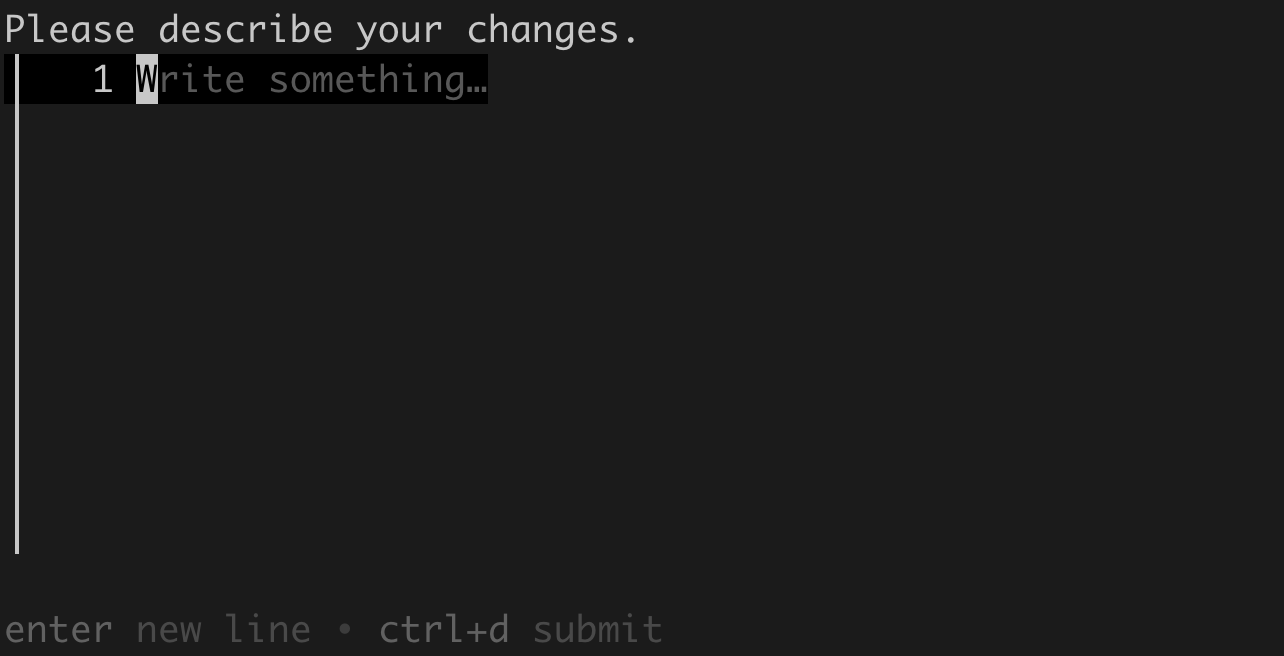
Multiline-text with placeholder
-
Required Attributes
destinationtype: multiline-text
-
Optional Attributes
Attribute Description Default placeholderHint text shown in empty editor “Write something…” Note: You generally don’t want to have instructions and a placeholder.
-
Example
commit-description:
  destination: body
  type: multiline-text
  instructions: "Describe your changes in detail"
  placeholder: "Why did you make these changes?"
  allow-empty: true
select
A single-choice selection from a list of options.
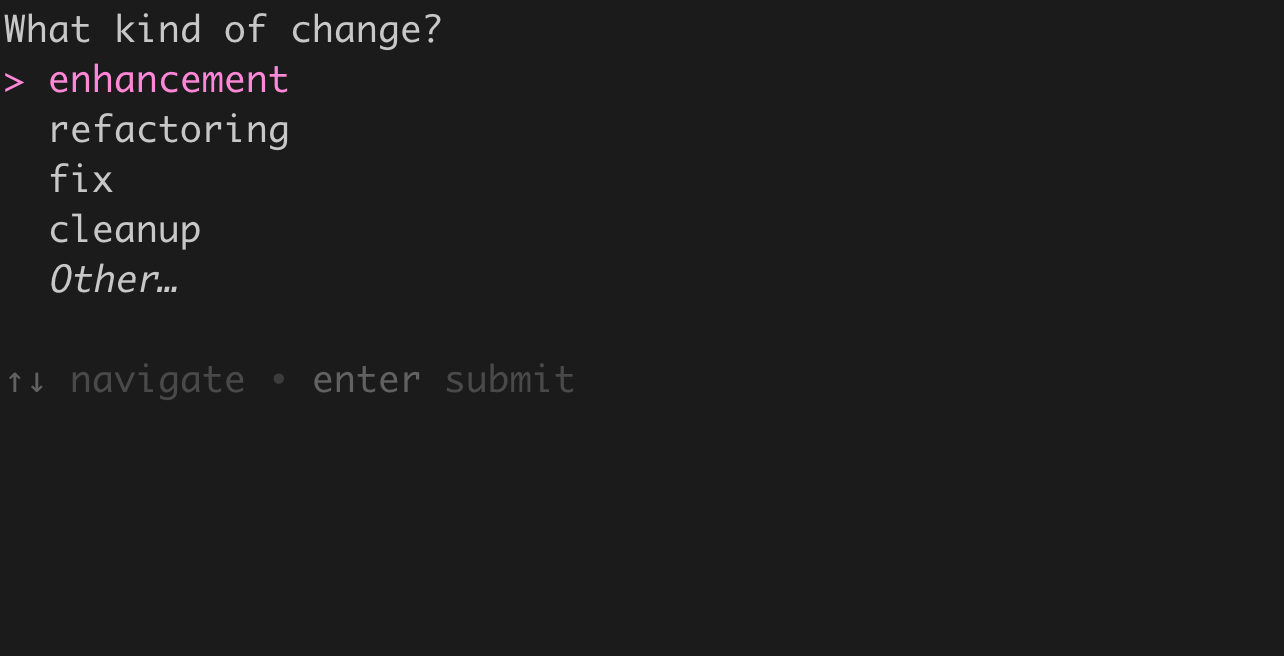
Select input with instructions
-
Required Attributes
destinationtype: selectoptions- List of choices
-
Optional Attributes
Attribute Description Default modifiableAllow users to add new options (saved to config file) falseIf modifiable is set to
true, an “Other…” element will be added to the list and - if chosen - will allow the user to add a new element which will then be saved into their.git-com.y[a]mlfile for future use.
-
Example
change-type:
  destination: title
  type: select
  instructions: "What type of change is this?"
  options:
    - feat
    - fix
    - docs
    - refactor
    - test
  modifiable: true
  after-string: ": "
multi-select
A multiple-choice selection from a list of options. Use Space to select items and Enter to submit.
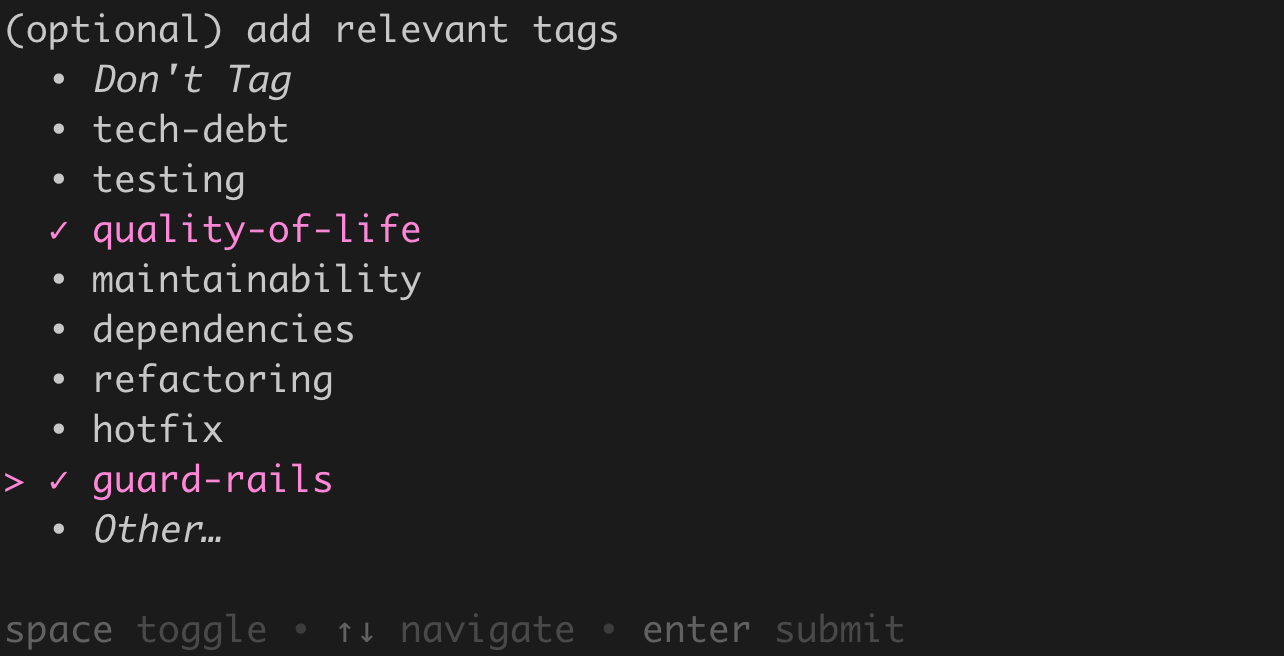
Multi-select input with 2 options selected
-
Required Attributes
destinationtype: multi-selectoptions- List of choicesrecord-as- Output format:listorjoined-string
Note: It is generally not a good idea to use a
multi-selectif you’re adding its output to the title of your git commit.When
destinationistitle,record-asmust bejoined-string. Thelistformat contains newlines which are not allowed in commit titles.
-
Optional Attributes
Attribute Description Default modifiableAllow users to add new options (saved to config file) falselimitMaximum number of selections (0 = unlimited) 0bullet-stringPrefix for each item when record-as: list"- "join-stringSeparator when record-as: joined-string", "empty-selection-textLabel for the “skip” option (requires allow-empty: true)"No Selection"If modifiable is set to
true, an “Other…” element will be added to the list and - if chosen - will allow the user to add a new element which will then be saved into their.git-com.y[a]mlfile for future use.-
empty-selection-text
It’s not currently possible to not select something in a
multi-select, but sometimes you want themulti-selectto be optional (allow-empty: true). We work around that limitation by adding a meta-element that - when chosen - tells the system that the user is choosing to not choose.By default, an optional
multi-selectwill have a No Selection option added to the top of the list. Settingempty-selection-textwill override that default text with whatever string you provide.
-
bullet-string
Setting
bullet-stringchanges what’s displayed before each line of a list of items chosen in amulti-selectThis is (optionally) used when
record-asis set tolistDefault example:
- foo
- bar
Setting
bullet-stringto"• "would give you this in your commit message• foo • bar
-
join-string
⚠️ note this is
join-stringnotjoined-stringSame idea as
bullet-stringbut used whenrecord-asis (optionally) set tojoined-stringfoo, bar, bazSetting
join-stringto" / "would give you this in your commit messagefoo / bar / baz
-
before-string & after-string notes
When using a
multi-selectwithrecord-asset to list, the behavior is slightly different. The list it produces will begin and end with a newline character (\n). As a result, you don’t need to end yourbefore-stringwith one to separate it from the list, and you don’t need to start yourafter-stringwith one to separate it.
-
-
Example
A
multi-selectthat would produce a joined string like"Tags: hotfix, security"might look like this:tags: destination: body type: multi-select instructions: "Select applicable tags" options: - breaking-change - hotfix - refactoring - performance - security record-as: joined-string join-string: ", " before-string: "Tags: " allow-empty: true empty-selection-text: "Skip tags" modifiable: trueA
multi-selectthat would produce a bullet list like this:Affected Areas: - backend - api - testsmight look like this:
affected-areas:
  destination: body
  type: multi-select
  instructions: "What areas of the codebase are affected?"
  options:
    - frontend
    - backend
    - database
    - api
    - tests
  record-as: list
  bullet-string: "- "
  before-string: "\nAffected Areas:"
  limit: 3
confirmation
A yes/no confirmation prompt. Selecting “No” always aborts the commit regardless of where it is in your flow. Use this to sanity check that contributors have done some required task before proceeding.
You’ll see an example of this at the end of every git-com run.
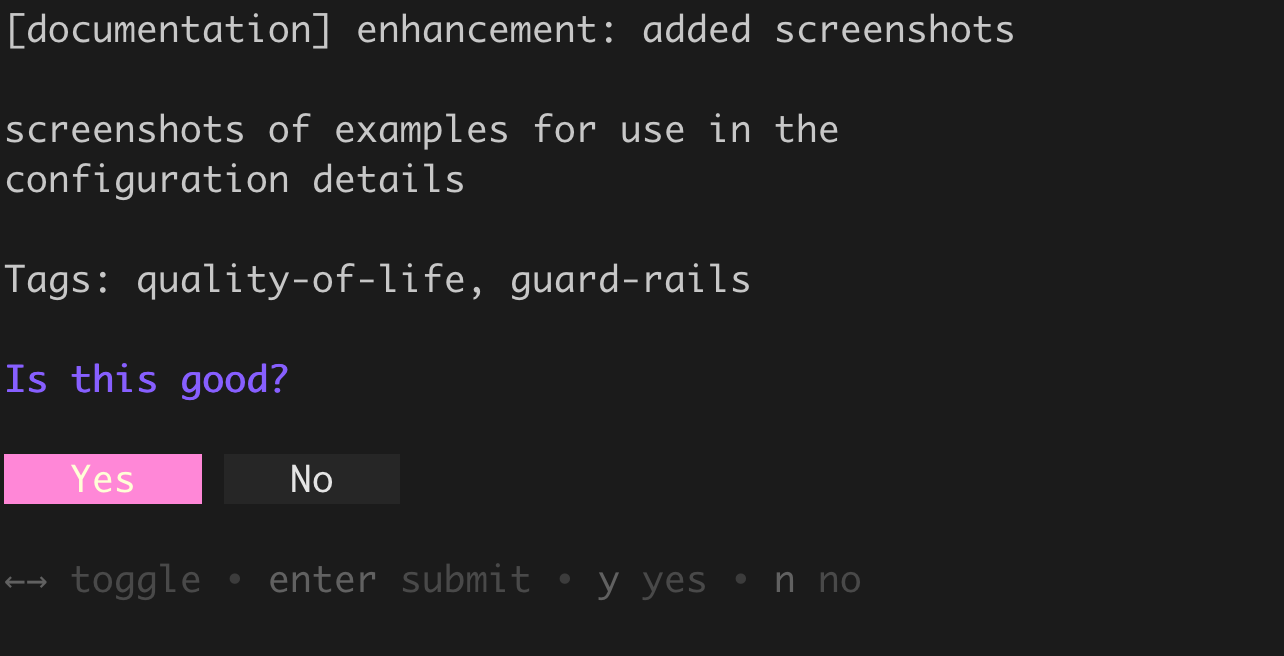
Select input with instructions
-
Required Attributes
type: confirmation
-
Example
confirm-commit:
  type: confirmation
  instructions: "Are you sure you want to create this commit?"
Note: The confirmation element doesn’t add any text to the commit message. It’s purely for workflow control.
Formatting for Alignment
Elements support an optional format attribute that applies sprintf-style formatting to the final value (after before-string and after-string are applied). This is useful for aligning your git log output.
For example, if you have a change-type element with varying length options like “feat”, “fix”, “refactor”, your git log might look uneven:
[feat] new format functionality
[fix] annoying bug that did bad thing
[refactor] cleaned up the code
By adding format: "%-11s" to the element you can pad the output to a consistent width:
change-type:
  destination: title
  type: select
  before-string: "["
  after-string: "]"
  format: "%-11s"
  options:
    - feat
    - fix
    - refactor
This produces aligned output in your git log:
[feat]     new format functionality
[fix]      annoying bug that did bad thing
[refactor] cleaned up the code
Note: %-11s is saying we want this left aligned and padded on the right to a width of 11 characters. That’s the length of the longest option (8) + the length of the before-string (1) + the length of the after-string (1) + an additional character to separate it from what follows. Setting it to a number too small will not cut off any text, but it will mean your alignment won’t be consistent.
The format string uses Go’s fmt.Sprintf syntax. See the fmt package documentation. Common patterns:
%-12s- left-align, pad to 12 characters%12s- right-align, pad to 12 characters
Multi-select Lists
For multi-select elements with record-as: list, the format is applied to each line individually (after the bullet string) rather than to the entire multi-line result. This allows you to align list items.
affected-areas:
  destination: body
  type: multi-select
  record-as: list
  bullet-string: "- "
  format: "%20s"
  before-string: "\nAffected:\n"
  options:
    - frontend
    - backend
    - database
Selecting “frontend” and “database” produces:
Affected:
          - frontend
          - database
Each line is aligned-right and padded to 20 characters (including the bullet). Note that before-string and after-string still wrap the entire list, not each line.
For multi-select with record-as: joined-string, the format is applied to the entire joined result as usual.
Complete Example
[docs] enhancement: adding to the spec

Documenting some more of the edge cases we'll have to handle
so that we make sure to get everything right.

Ticket: 12345

Tags: hotfix, refactoring
Here’s a configuration that could produce that commit message.
code-section:
  destination: title
  type: select
  instructions: "Which part of the codebase does this affect?"
  options:
    - input
    - git
    - output
    - docs
    - tests
  modifiable: true
  before-string: "["
  after-string: "] "
  #^^ note the trailing space to separate it from what comes next

change-type:
  destination: title
  type: select
  instructions: "What type of change is this?"
  options:
    - feat
    - fix
    - enhancement
    - refactor
    - docs
  modifiable: true
  after-string: ": "
  #^^ note the trailing space to separate it from what comes next

commit-title:
  destination: title
  type: text
  instructions: "Enter a brief commit title"
  placeholder: "Summarize your changes"

commit-description:
  destination: body
  type: multiline-text
  instructions: "Describe your changes (optional)"
  allow-empty: true

ticket-number:
  destination: body
  type: text
  data-type: integer
  instructions: "Enter the ticket number (optional)"
  before-string: "\nTicket: "
  #^^ note the newline character to drop it down a line,
  #   also the trailing space to separate it from the entered value
  allow-empty: true

tags:
  destination: body
  type: multi-select
  instructions: "Select any applicable tags (optional)"
  options:
    - hotfix
    - refactoring
    - breaking-change
    - performance
  record-as: joined-string
  join-string: ", "
  # using just "," would produce "foo,bar,baz" without spaces
  before-string: "\nTags: "
  #^^ note the newline character to drop it down a line,
  #   also the trailing space to separate it from the
  #   joined-string that will follow
  allow-empty: true
  empty-selection-text: "No tags"
  modifiable: true
Tips
Element Order Matters
Elements are processed in the order they appear in the YAML file. Plan your configuration so that related items flow naturally. Title elements typically come first, followed by body elements.
Keep Title Options Short
Having a pulldown for what part of a project the commit pertains to is one of the most useful things I do with git-com, however I recommend:
- limit it to one
selectoption in the title - don’t use
multi-selectoptions in the title. You can, but you shouldn’t. - keep the options short. E.g. use “docs” instead of “documentation”
An ideal commit message has a title of 50 characters or less, after 72 characters many tools (including GitHub) start cutting things off. That’s not a lot to work with. Specifying the part of the project helps save some descriptive words, but can also hurt if the option is too long.
Modifiable Lists
When modifiable: true is set on a select or multi-select element, an “Other…” option appears at the bottom of the list. Selecting it prompts for a new value, which is:
- Used in the current commit
- Automatically saved to your
.git-com.yamlfile for future use
This is useful for growing your options organically as your project evolves.
Before and After Strings
Use before-string and after-string to add formatting without requiring user input:
- Add prefixes like
"["or"Ticket: " - Add suffixes like
"] "or": " - Add newlines in body elements with
"\n"for spacing
💡 Tip: If text will follow on the same line, be sure to include a trailing space in your after-string. Ex. use ": " not ":"
Optional vs Required
By default, all elements require input. Set allow-empty: true to make an element optional. For multi-select, you can customize the skip option text with empty-selection-text.
Emoji 😀
Emoji are fine within the body of a commit, but don’t use them in more structured elements like select options. A single emoji can be comprised of multiple code-points which are invisibly combined, and can cause headaches when trying to find matching commits.
If it’s something you’re going to be searching for, or using to generate reports, don’t include emoji in it.